 HEADWALL
Headwall for iPhone and iPad
The timer, the workout library and — on iPhone — your heart rate and your log. It works with no box, no TV and no network, and it is also the remote for a Headwall wall when there is one.
In testing now, not yet on the App Store — get in touch if you want in.
A timer that needs nothing else
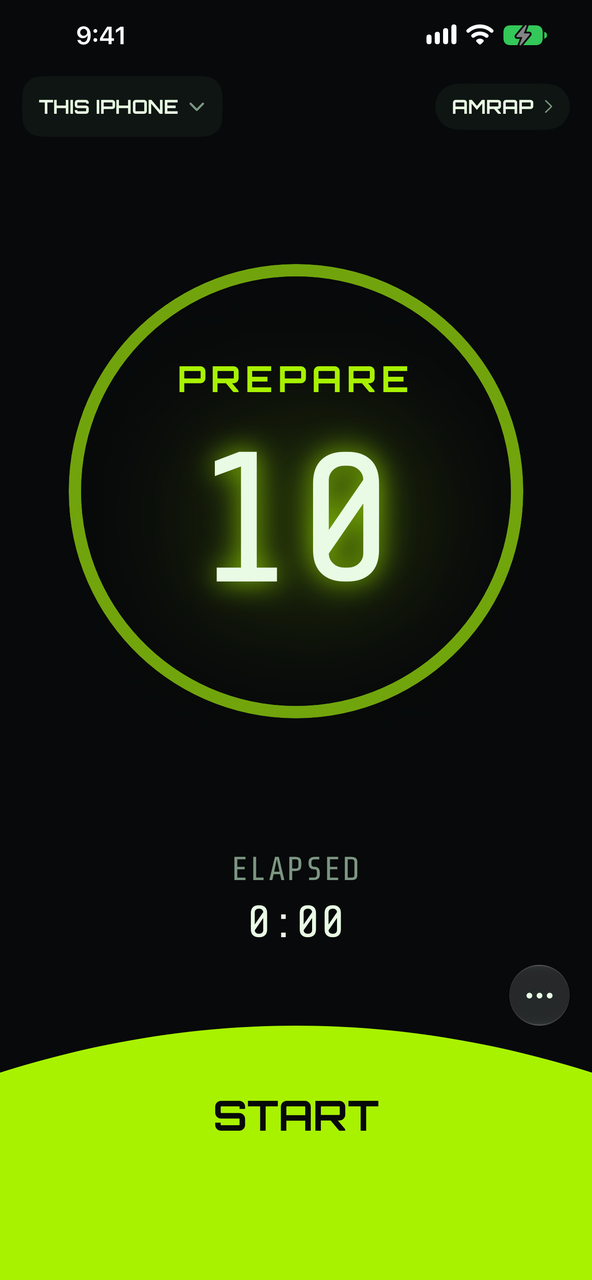
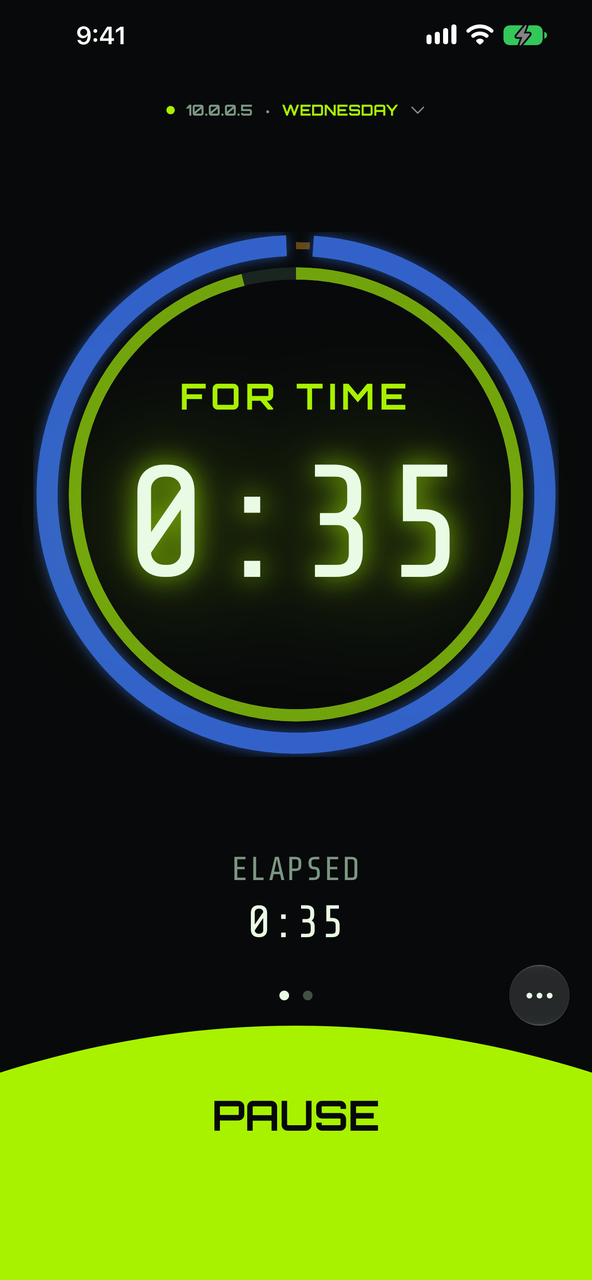
Open the app and the timer is already there, pointed at the phone itself. AMRAP, EMOM, TABATA, FOR TIME and STRENGTH, or a workout of several blocks running back to back. No pairing, no hardware, no network — and no account anywhere in the product.
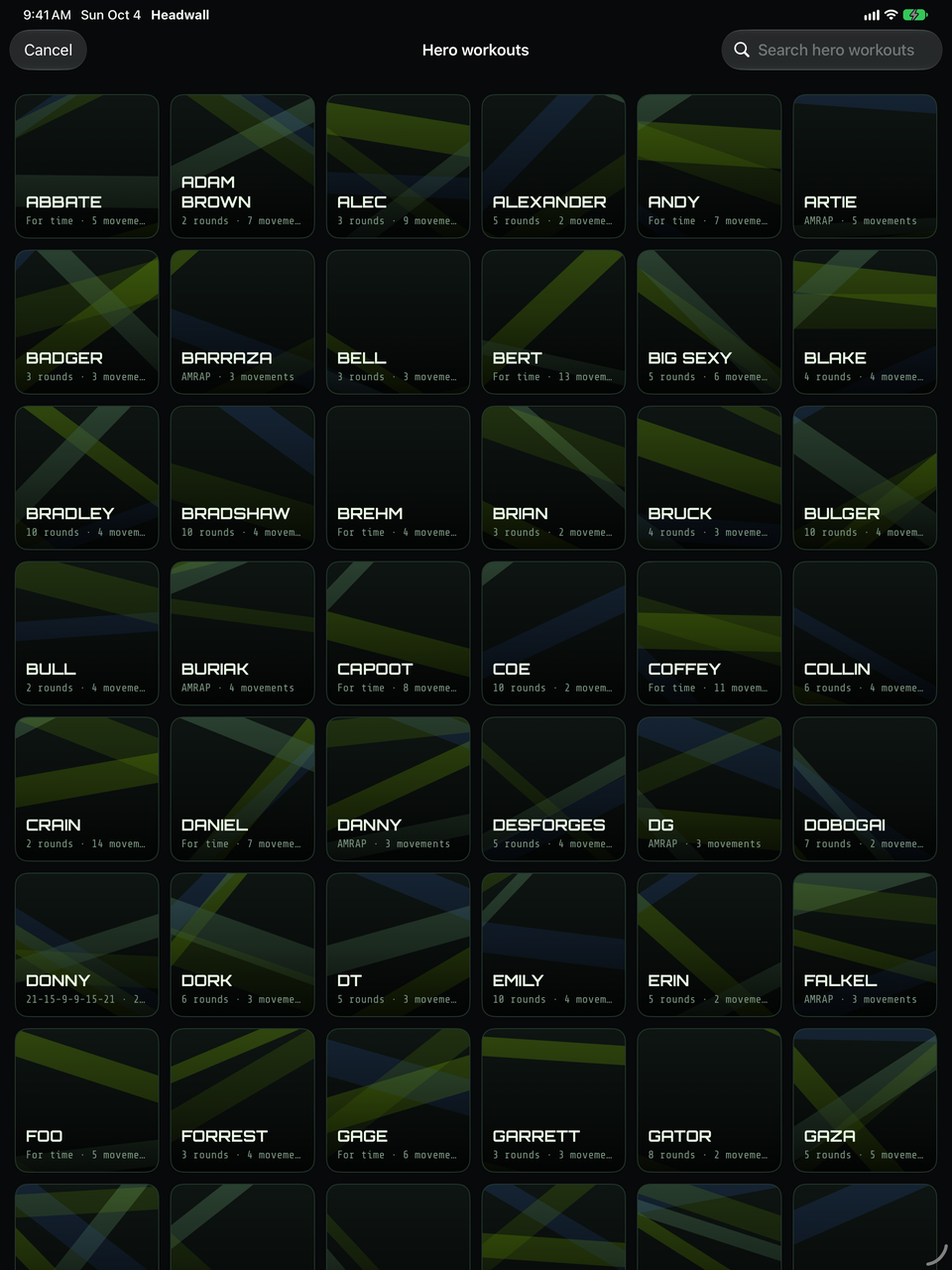
150 hero workouts, built in.
Structure only — names and movements, no prose and no marks. Pick one and it copies into your own library, where you can change it.
Your own library.
Workouts you write live on the phone. Point the app at a wall and you are editing that wall's library instead, over Wi-Fi.
Heart rate — iPhone only
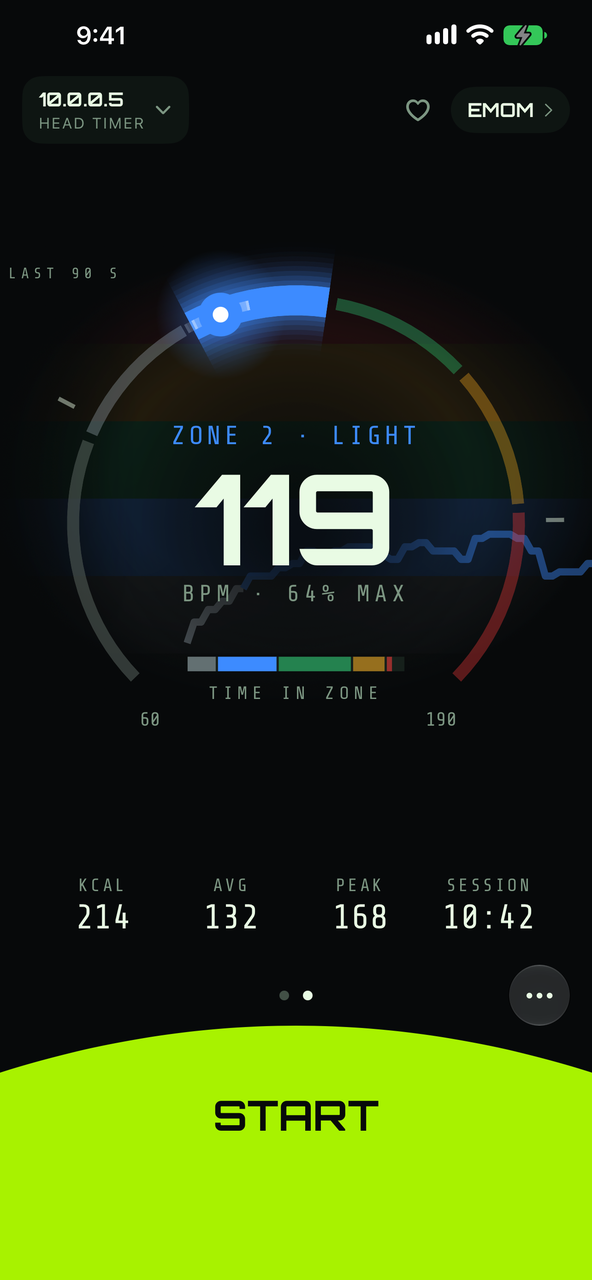
Pair a Bluetooth heart-rate strap or watch and a heart page joins the swipe cycle: live zone and beats per minute, the last ninety seconds as a trace, and calories, average and peak as you go.
Five zones, your way.
Percentage of maximum, or Karvonen heart-rate reserve. Edit the boundaries; leave them and sensible defaults apply.
Calories, only when they mean something.
Enter your sex, year of birth and weight and Headwall estimates energy from heart rate. Leave it empty and it shows no calories rather than a guess.
Fat and carbohydrate, if you have the numbers.
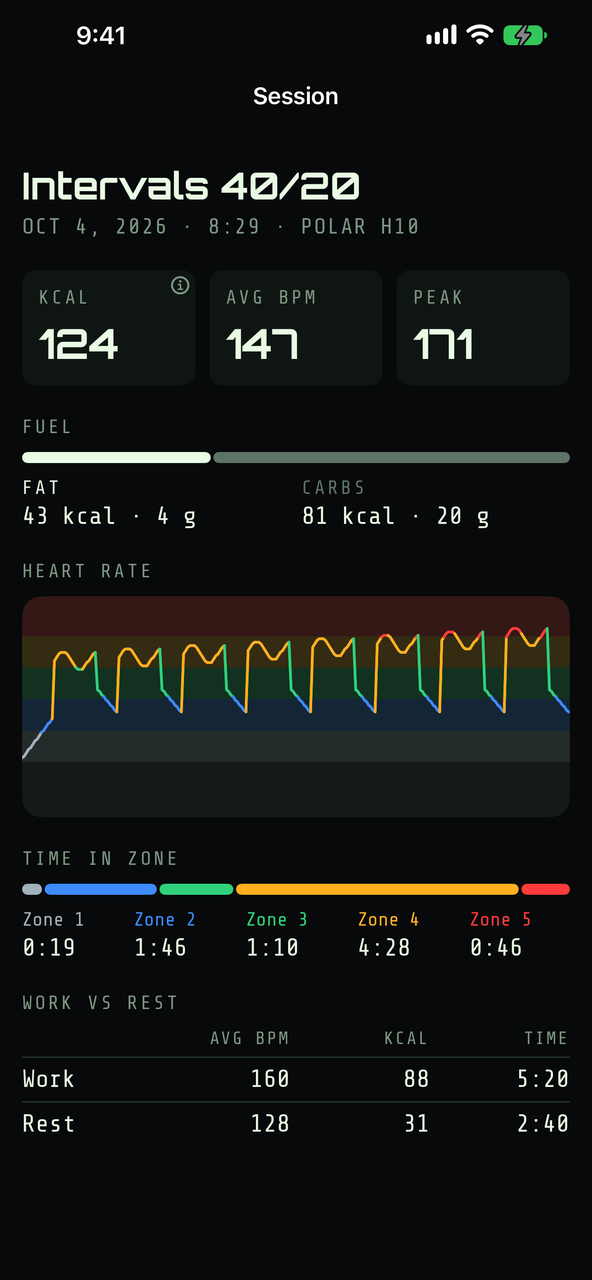
Add a fuel table from a metabolic test and a finished session splits the burn between fat and carbs. Without one, that panel stays away.
Every session kept.
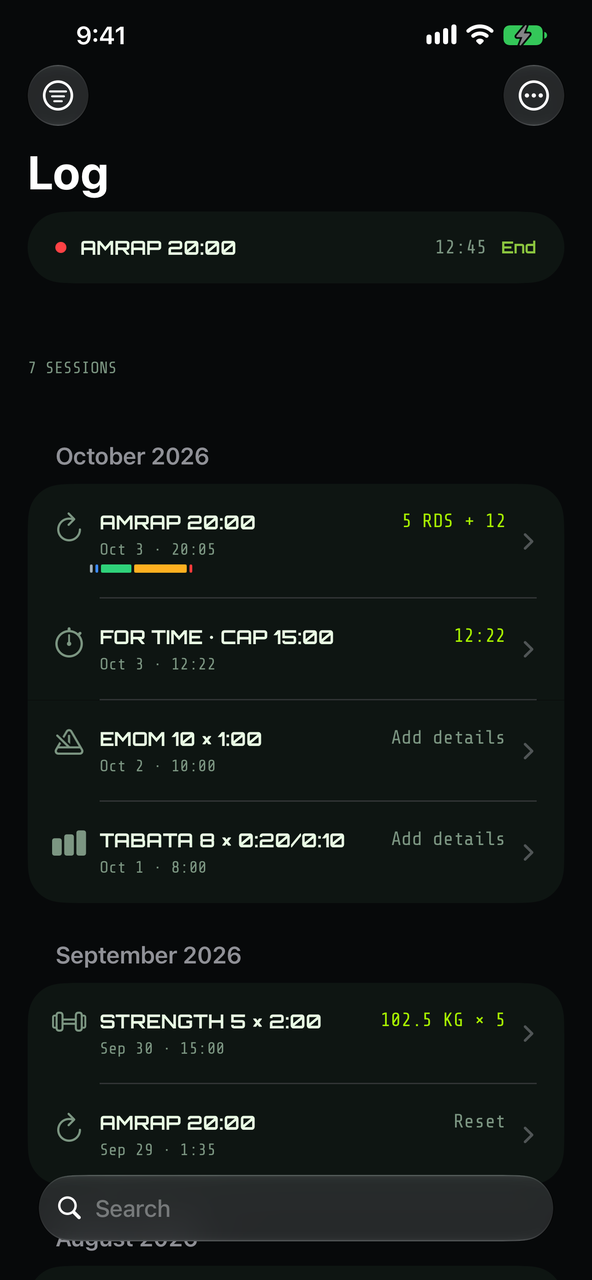
Sessions are listed with date, duration, calories and a zone bar; open one for the full write-up, or swipe it away. Each keeps the zones and profile it was recorded with, so editing them later never rewrites your history.
iPad has no heart rate — the monitor is created only on iPhone. And nothing recorded leaves the phone: not to the wall, not to the box, not to us.
A log that fills itself in
Every run the timer times becomes a session — on its own, whether or not a strap is connected. The workout, the clock, the blocks and when it happened are already there. What it never guesses is your score, because only you know it.
Score it in its own words.
Rounds and reps for an AMRAP, your time for a For Time — capped or not — and every set for a Strength piece. Add effort out of ten and a note. EMOM and Tabata take effort and a note only, because there is no score to give them.
Count while you work.
TALLY as each round lands, FINISH when you are done, LOG SET as you lift. The result form is then already filled in from your own taps — and it works while you are following a wall, with an UNDO for the tap that shouldn't have counted.
What you actually did.
Scaled the weight, swapped a movement? Record it against that session without touching the workout everyone else runs. Ran a plain clock? Attach the workout afterwards — from your library, or from text or a photo of the board.
Progress, honestly.
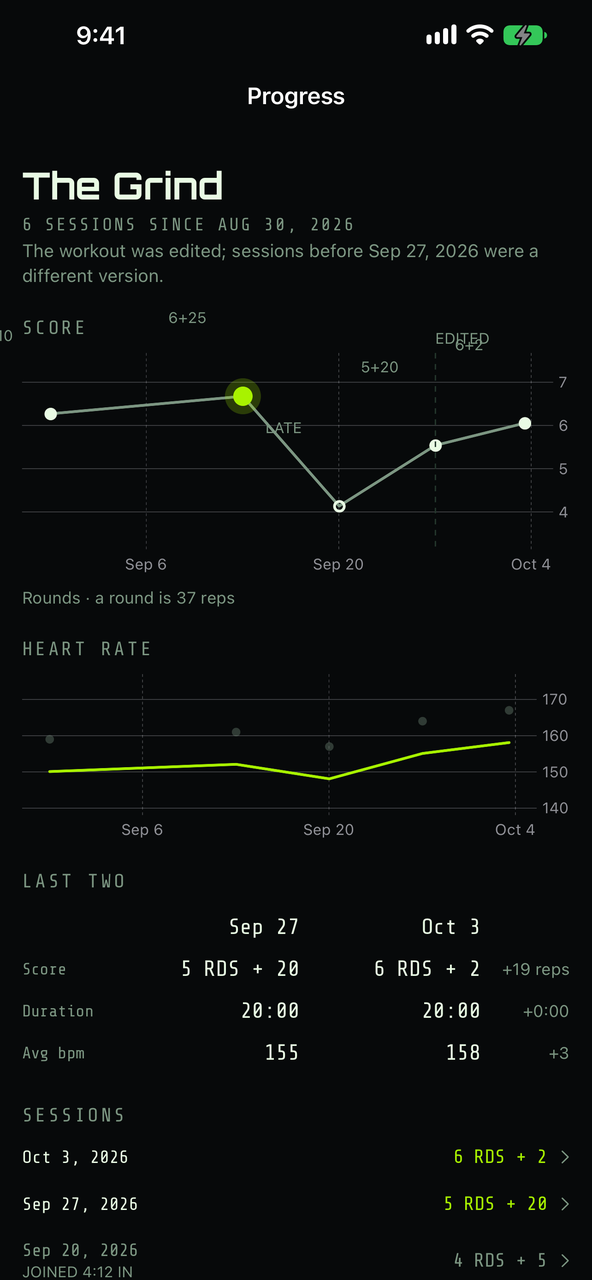
Sessions of one workout form a series: score over time, average and peak heart rate, how far your heart rate drops in the rests, and the last two side by side. Sessions you joined late are marked, and the chart shows where you edited the workout — because a number after that is not the same number.
A card for the ones worth posting
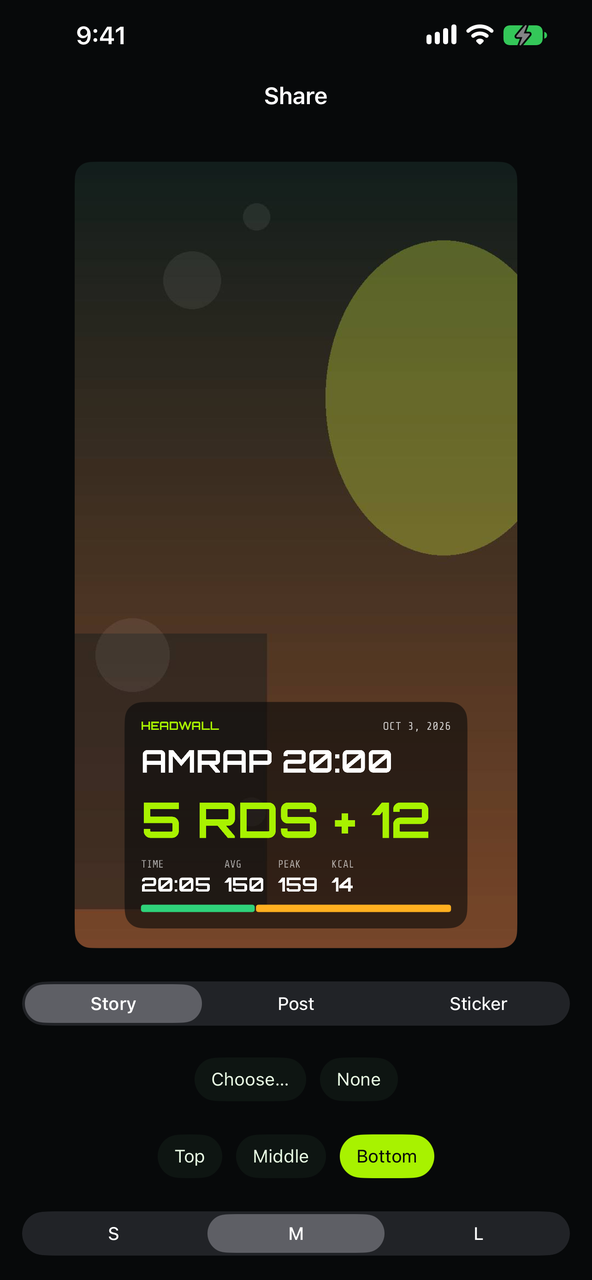
A session makes a card: the workout, your score, your time, and — with a strap — average, peak and time in each zone. Put it over one of your own photos or the wall's colours, as a story, a post or a sticker, and drag it where you want it. Your gym's name goes on it if you ask for it.
It is drawn on the phone and handed to the iOS share sheet, so it goes wherever you send it. The photo you pick is never written to disk, and nothing is uploaded — there is nowhere for it to go.
The only place you write workouts
Walls choose a workout; the phone is where one is written. Add blocks and reorder them, give each its own mode and clock, set whether it runs straight into the next and how long the rest between them is.
Movements are picked from a fixed vocabulary of 100 rather than typed, so "thruster" is always the same thing and a wall can lay it out properly across the room.
Or don't write it at all
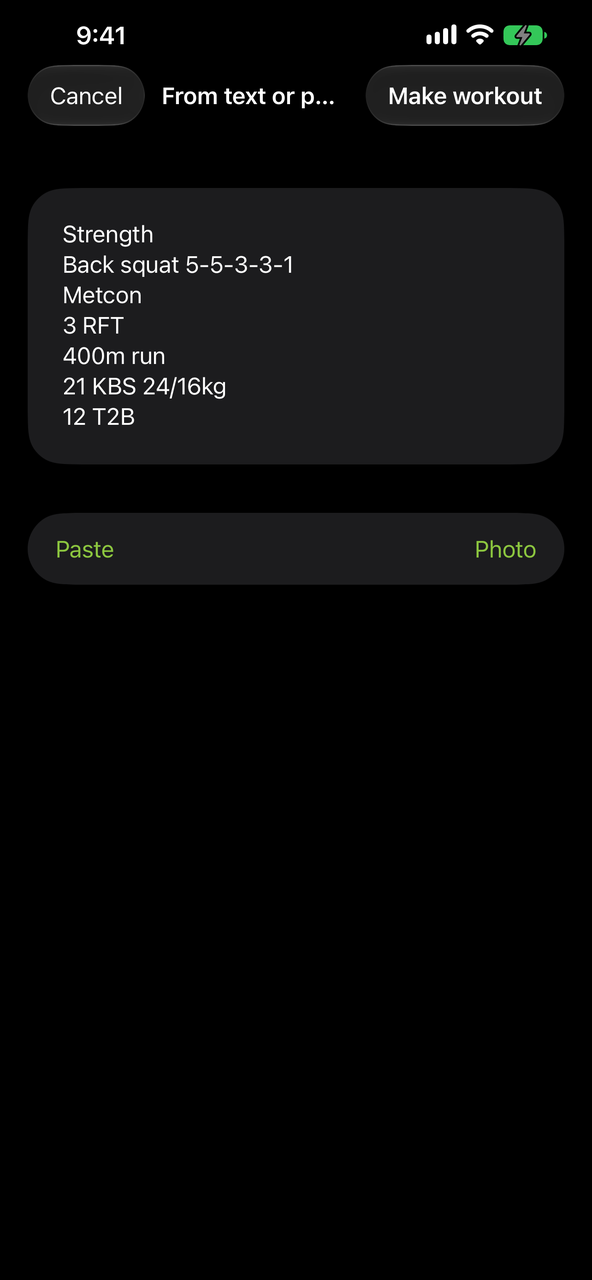
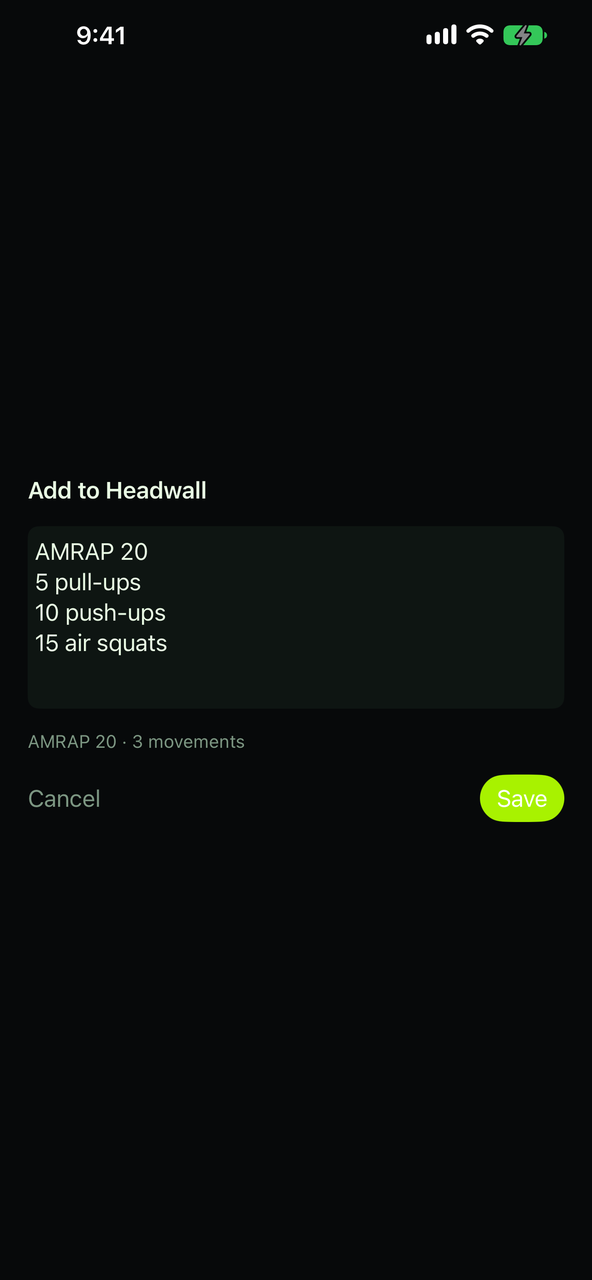
The workout is usually written down already — on the gym's whiteboard, in a coach's message, in a programming post. Paste it, dictate it, or point the camera at the board, and Headwall turns it into a workout: blocks, modes, clocks and movements, ready to run.
From a photo.
Take one, or pick one from your library. The text is read on the phone and shown to you before anything else happens, so a marker "T28" that should have been "T2B" is fixed in a text box, not hunted down in a finished workout.
From anywhere, with Share.
Share a photo, a screenshot or some text to Headwall from any app. It reads it there and then, and the workout is waiting the next time you open Headwall.
Always yours to check.
Nothing is saved until you have looked at it. Anything Headwall couldn't read is listed at the top of the editor, and a movement it doesn't recognise is left out and named — never guessed. If the workout is one you already have, or one of the 150 heroes, it offers that one instead, so its sessions stay together.
After the fact, too.
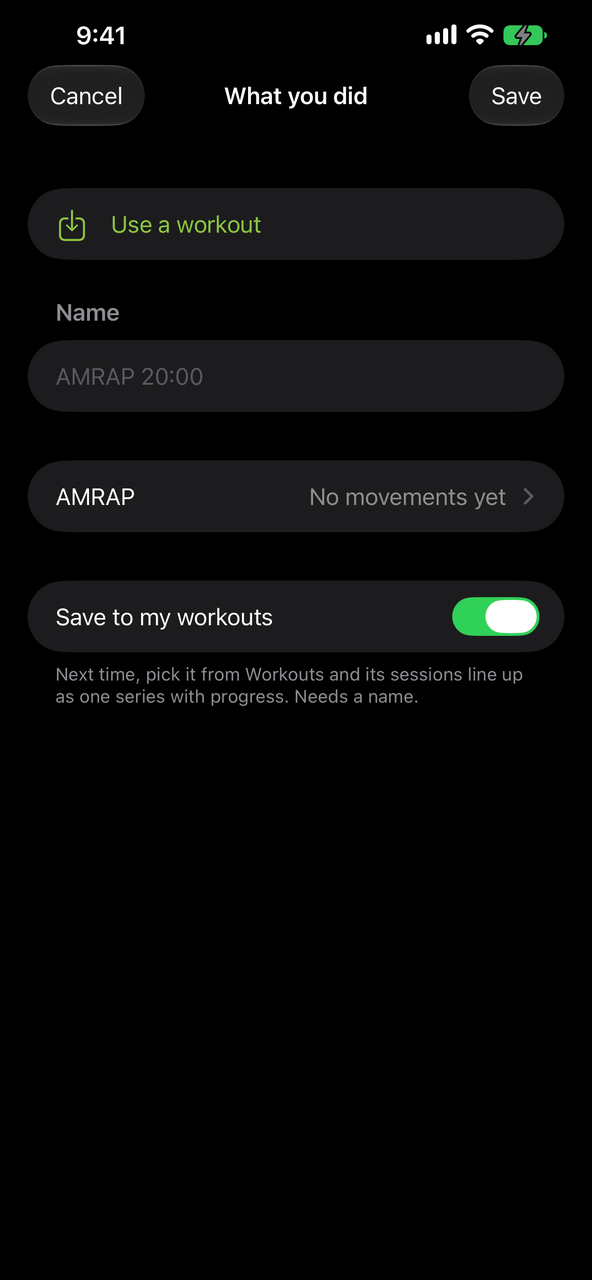
Ran a plain clock and want the session to count? Open it in the Log and choose Use a workout — from your library, from text or from a photo — and it joins that workout's progress. Picked the wrong one? Replace workout.
Read on the phone, by the phone. Where Apple Intelligence is available it helps with what the reader can't make sense of — on the device, never in the cloud. Nothing is uploaded.
And the remote for a wall
Scan the code a wall shows — with the camera, or type the eight characters — and the same app drives it: start, pause, reset, load a workout, rename the screen, switch it between timer-first and movements-first. One phone drives a wall at a time; pairing a new one tells the old one it was replaced.
Pairing lasts. A gym iPad left on a shelf is not asked to scan again three times a day.
On iPad
The same app, larger, with one layout of its own: Split, the clock and the block's movements side by side, which an iPhone never has room for. The iPad rotates; the iPhone stays portrait.
Two things are the iPhone's alone: heart rate and the log. An iPad times workouts, runs a wall and edits your library, but it records no sessions and has no Log — so keep the phone in your pocket if you want the session kept.
Requirements
- iPhone or iPad running iOS 16.4 or later.
- For heart rate and the log: an iPhone. Heart rate also needs a Bluetooth strap or watch; the log does not.
- For driving a wall: a Headwall box or Headwall TV on the same Wi-Fi.
Questions? support@headwall.app